Review parts and stock suggestions
The Parts tab is where the model starts turning into a useful workshop list. SawWise makes suggestions from shape, dimensions, stock, names, and materials; you tidy up anything it could not confidently work out.
Understand the four tabs
| Tab | Use it for |
|---|---|
| Overview | Purchase summary, loose geometry, and items worth checking |
| Parts | Names, quantities, dimensions, stock suggestions, materials, and manual corrections |
| Timber | Board allocations, cut lengths, kerf, waste, and timber plan style |
| Sheets | Sheet purchases, panel layouts, guillotine cuts, progress, and offcut use |
Timber is hidden when there is no timber plan, and Sheets is hidden when there are no remaining sheet parts. If a tab you expected is missing, Overview will usually explain why.
Match badges
For automatic suggestions, Good match, Review, Weak match, and Unclassified show how confidently SawWise matched a part to your configured stock. They are a quick way to decide which rows to look at first. A manually chosen stock can show Good match simply because you made that choice, rather than because SawWise checked it independently.
A weak match often just means the right stock has not been added to Settings yet. Even good matches are worth a glance for material and finished size.
Start with Needs review, then use All parts to inspect the full list.
Needs review collects uncertain part rows and adds an item when the model contains loose drawing geometry. All parts gives you the complete picture.
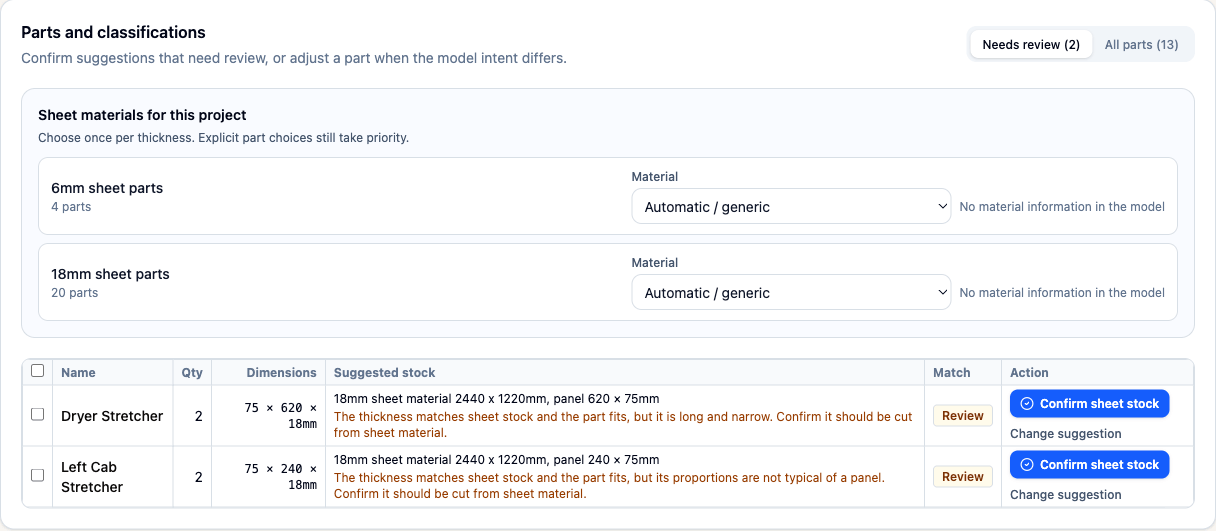
The Needs review filter keeps uncertain classifications and their reasons in view.
Unknown and weak parts
For every uncertain row:
- Compare Name, Qty, and Dimensions with SketchUp.
- Read the reason beneath Suggested stock.
- Look at any notes about unusual or irregular geometry.
- Decide whether it is timber, sheet stock, genuinely unknown, or not a cut part.
- Correct the stock and manufacturing dimensions if necessary.
Confirm timber stock or Confirm sheet stock keeps that stock choice in the plan.
Material hints and sheet confirmation
Material hints can come from component names, instance names, SketchUp materials, faces, or an inherited material. SawWise shows the clues it found so mixed signals are easy to untangle.
Under Sheet materials for this project, choose a material once for each sheet thickness. Automatic / generic lets SawWise choose. A per-part stock choice takes priority when one panel needs something different.
Choose the material, thickness, and sheet size you actually want to use; two panels being the same thickness does not make their materials interchangeable.
Per-part corrections
Open Adjust, Change suggestion, or Edit details for a row. Depending on the selected stock type, you can change:
- Part name and Quantity.
- Stock assignment.
- Cut length for timber.
- Panel length and Panel width for sheets.
- Keep panel orientation.
- Exclude from cut list.
Use automatic suggestion removes a manual stock choice. Leave unclassified keeps the part visible as unknown instead of forcing a stock assignment.
After changing a dimension, remember to check any connected parts, joinery, clearances, or hardware in your design.
Bulk corrections
Select several rows to expose bulk actions. You can Apply stock, Ignore, Lock orientation, Unlock orientation, or Clear overrides.
Bulk actions are great for repeated pieces. Have a quick look over the selected rows first so an unrelated part does not sneak in.
Orientation and grain
Sheet panels can normally rotate by 90 degrees to fit more efficiently. Keep panel orientation prevents that rotation. It is a manual proxy for grain, face pattern, directional texture, or any other reason the panel must stay aligned.
SawWise does not detect grain direction, so mark the matching direction on the physical sheet if it matters to the project.
Ignored parts
Exclude from cut list removes the part quantity from shopping and cutting plans. Use it for handles, appliances, hardware placeholders, whole-assembly reference objects, or other model content that is not cut from configured stock.
Tip: Excluded and zero-quantity parts stay out of the totals. They are worth a quick glance before you finish the shopping list.
Finish by returning to Overview and checking that the remaining notes all make sense for your project.